
Web UI#
Use the web UI to edit protocols, monitor execution, inspect devices, and browse results.
See Installation to start it at http://localhost:3000.
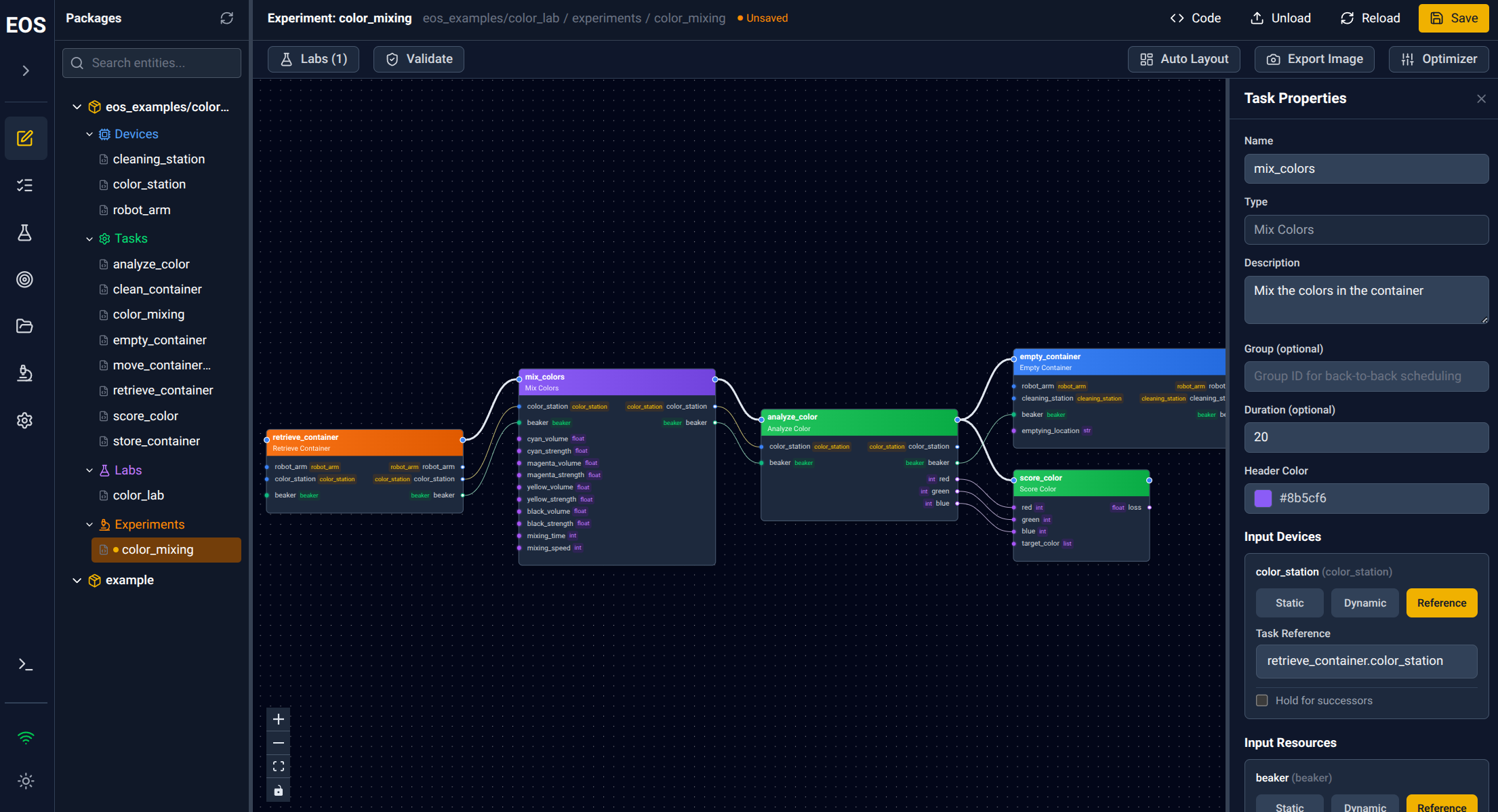
Screenshot of the EOS web UI editor view.#
Editor#
The editor is the central workspace for designing and building EOS packages:
Visual protocol designer with interactive task graphs showing dependencies and data flow
Build protocols by adding tasks, connecting inputs/outputs, assigning devices, and configuring parameters
Switching between visual and code views (changes sync both ways)
Reload tasks, devices, labs, and protocols without restarting EOS
Syntax-highlighted code editing for YAML configs and Python code
Package file tree for creating, renaming, and deleting entities
Tasks#
The tasks view manages individual task submissions:
Submit tasks using specific devices and input parameters
Clone previous tasks for easy re-submission
Protocol Runs#
The protocol runs view tracks protocol run execution:
Submit protocol runs with specific task parameters
Visual task flow graph with real-time status updates (pending, running, completed, failed)
Inspect task inputs, outputs, devices, and timing
Campaigns#
The campaigns view manages repeated protocol run execution and optimization:
Submit campaigns with parameters as JSON/CSV, or via optimizer sampling
Configure Optimizers, including Beacon and custom parameter controls
Monitor progress with optimization charts and Pareto front visualization
Configurable auto-refresh intervals across all views
Device Inspector#
The device inspector provides direct device interaction, useful for debugging and testing:
Live device state monitoring
Discover available RPC functions and their signatures
Call device functions directly with specific parameter inputs
View call history and results
Files#
The file browser provides access to EOS object storage (S3-compatible):
Upload, download, delete, and search files
Management#
The management view handles system configuration:
Packages: Installed packages and their status
Labs: Load, unload, and reload laboratory configurations
Devices: Device health status and lab assignments
Task Plugins: Available task types and their parameter specs
Protocol Types: Load, unload, and reload protocol configurations
Logs#
A sidebar log panel streams orchestrator logs in real time.